> ## Documentation Index
> Fetch the complete documentation index at: https://encrova-docs.platform.ai71services.ai/llms.txt
> Use this file to discover all available pages before exploring further.
# Key Management Service (KMS)
> Learn how to manage and use cryptographic keys with Encrova.
## Concept
Encrova can be used as a Key Management System (KMS), referred to as Encrova KMS, to centralize management of keys to be used for cryptographic operations like encryption/decryption.
By default your Encrova data such as projects and the data within them are encrypted at rest using Encrova's own KMS. This ensures that your data is secure and protected from unauthorized access.
If you are on-premise, your KMS root key will be created at random with the `ROOT_ENCRYPTION_KEY` environment variable. You can also use a Hardware Security Module (HSM), to create the root key. Read more about [HSM](/platform/kms/encryption-strategies).
Keys managed in KMS are not extractable from the platform. Additionally, data
is never stored when performing cryptographic operations.
## Workflow
The typical workflow for using Encrova KMS consists of the following steps:
1. Creating a KMS key. As part of this step, you specify a name for the key and the encryption algorithm meant to be used for it (e.g. `AES-GCM-128`, `AES-GCM-256`).
2. Encryption: To encrypt data, you would make a request to the Encrova KMS API endpoint, specifying the base64-encoded plaintext and the intended key to use for encryption; the API would return the base64-encoded ciphertext.
3. Decryption: To decrypt data, you would make a request to the Encrova KMS API endpoint, specifying the base64-encoded ciphertext and the intended key to use for decryption; the API would return the base64-encoded plaintext.
Note that this workflow can be executed via the Encrova UI or manually such
as via API.
## Guide to Encrypting Data
In the following steps, we explore how to generate a key and use it to encrypt data.
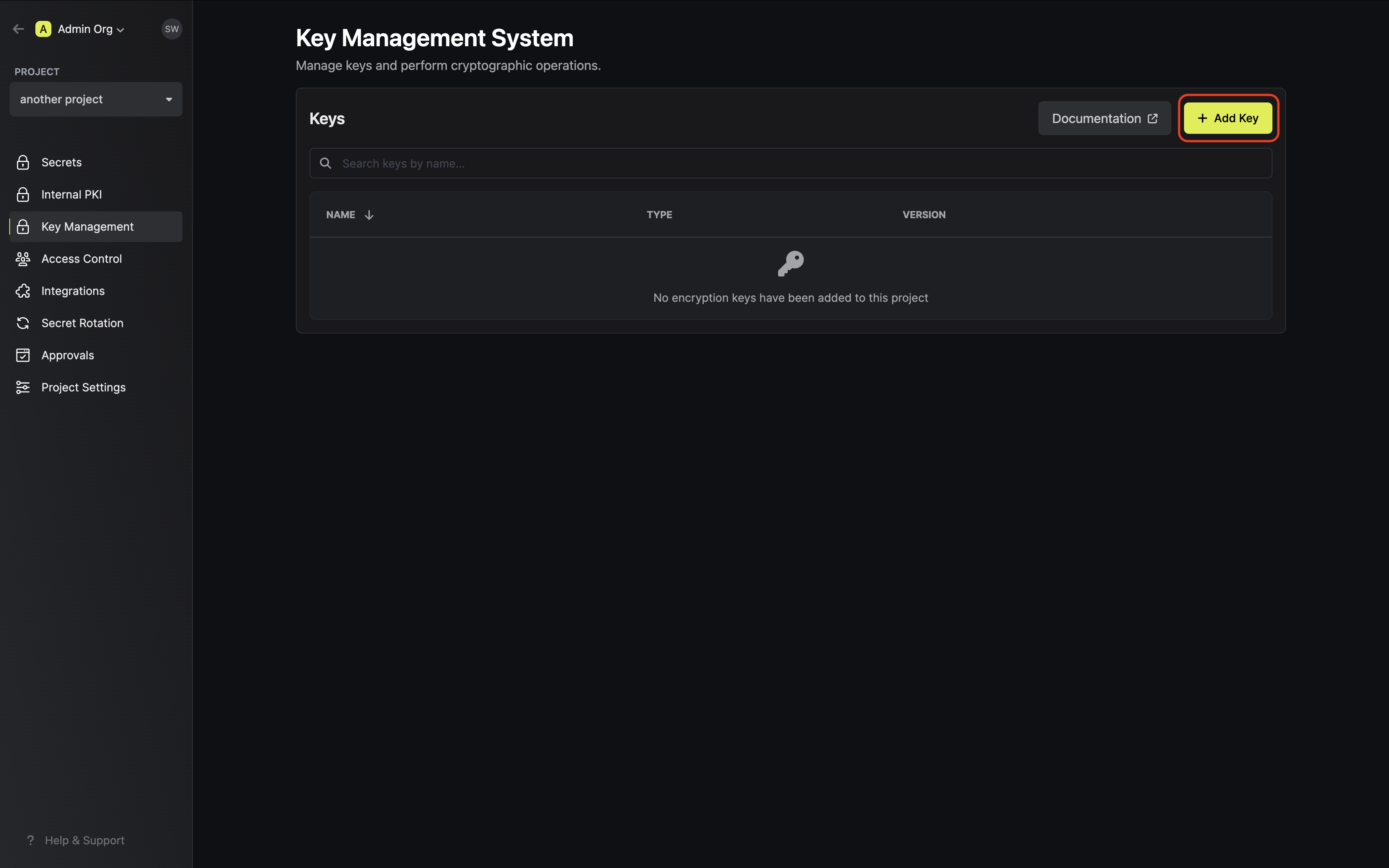
Navigate to Project > Key Management and tap on the **Add Key** button.
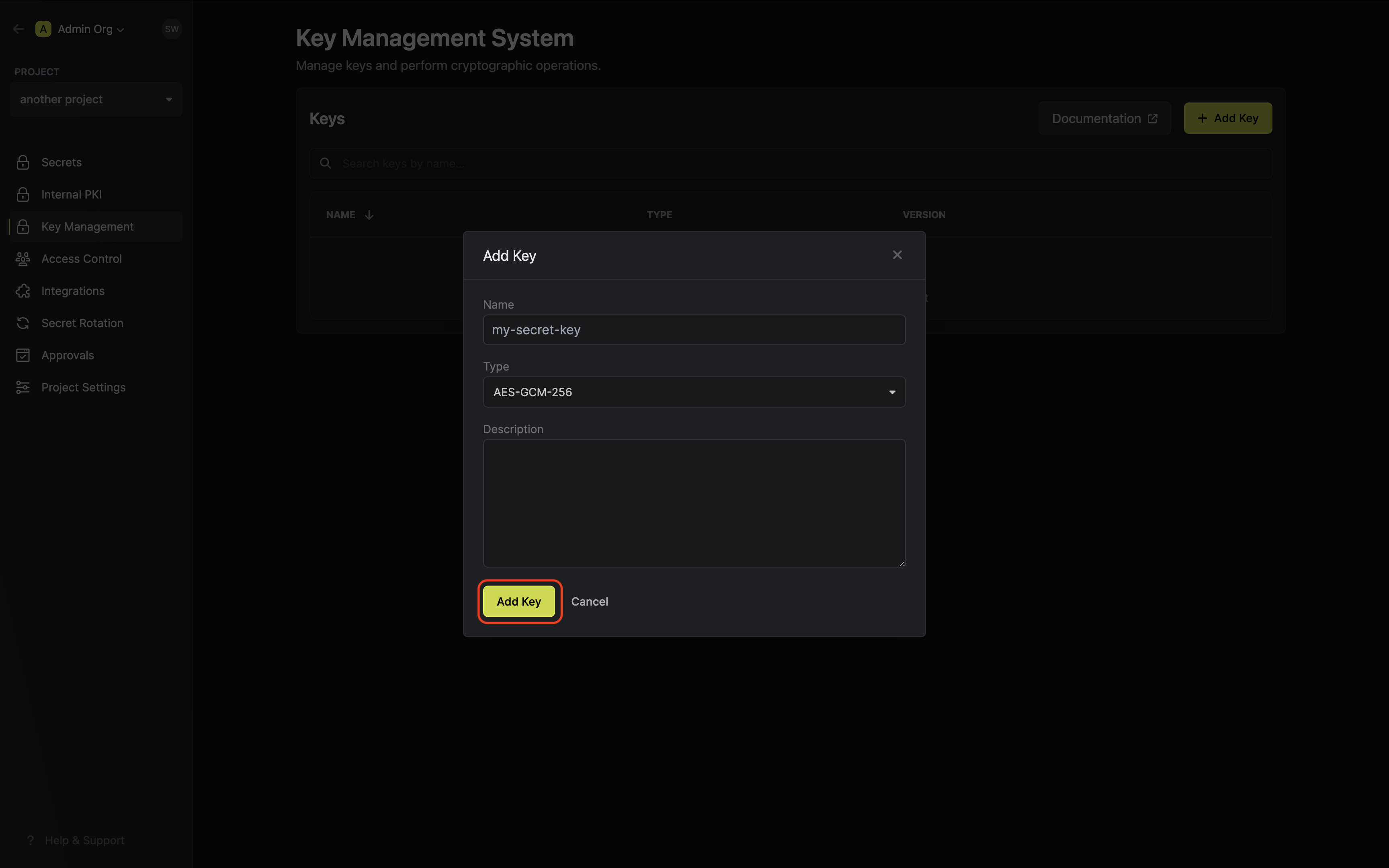
 Specify your key details. Here's some guidance on each field:
* Name: A slug-friendly name for the key.
* Type: The encryption algorithm associated with the key (e.g. `AES-GCM-256`).
* Description: An optional description of what the intended usage is for the key.
Specify your key details. Here's some guidance on each field:
* Name: A slug-friendly name for the key.
* Type: The encryption algorithm associated with the key (e.g. `AES-GCM-256`).
* Description: An optional description of what the intended usage is for the key.
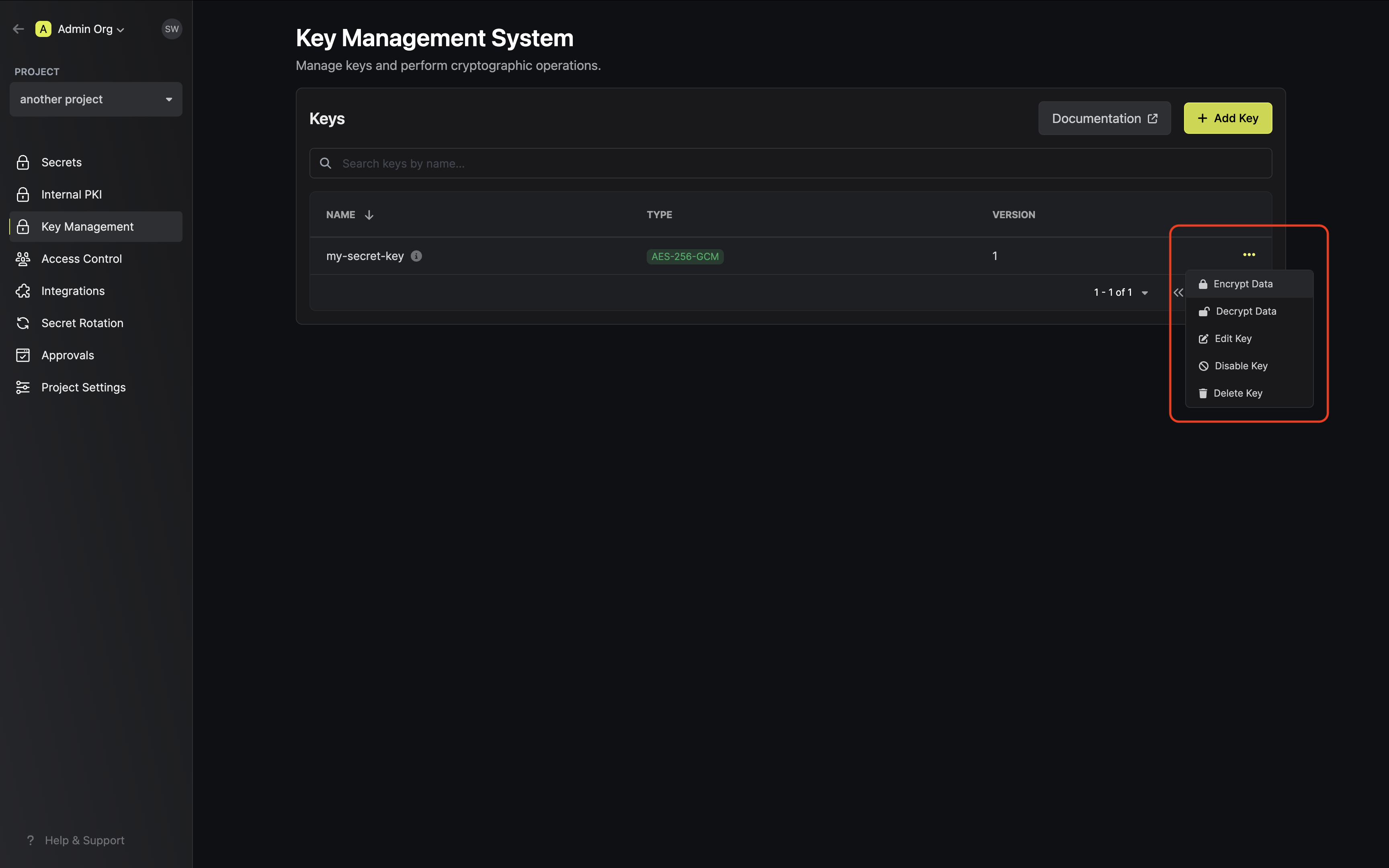
 Once your key is generated, open the options menu for the newly created key and select encrypt data.
 Populate the text area with your data and tap on the Encrypt button.
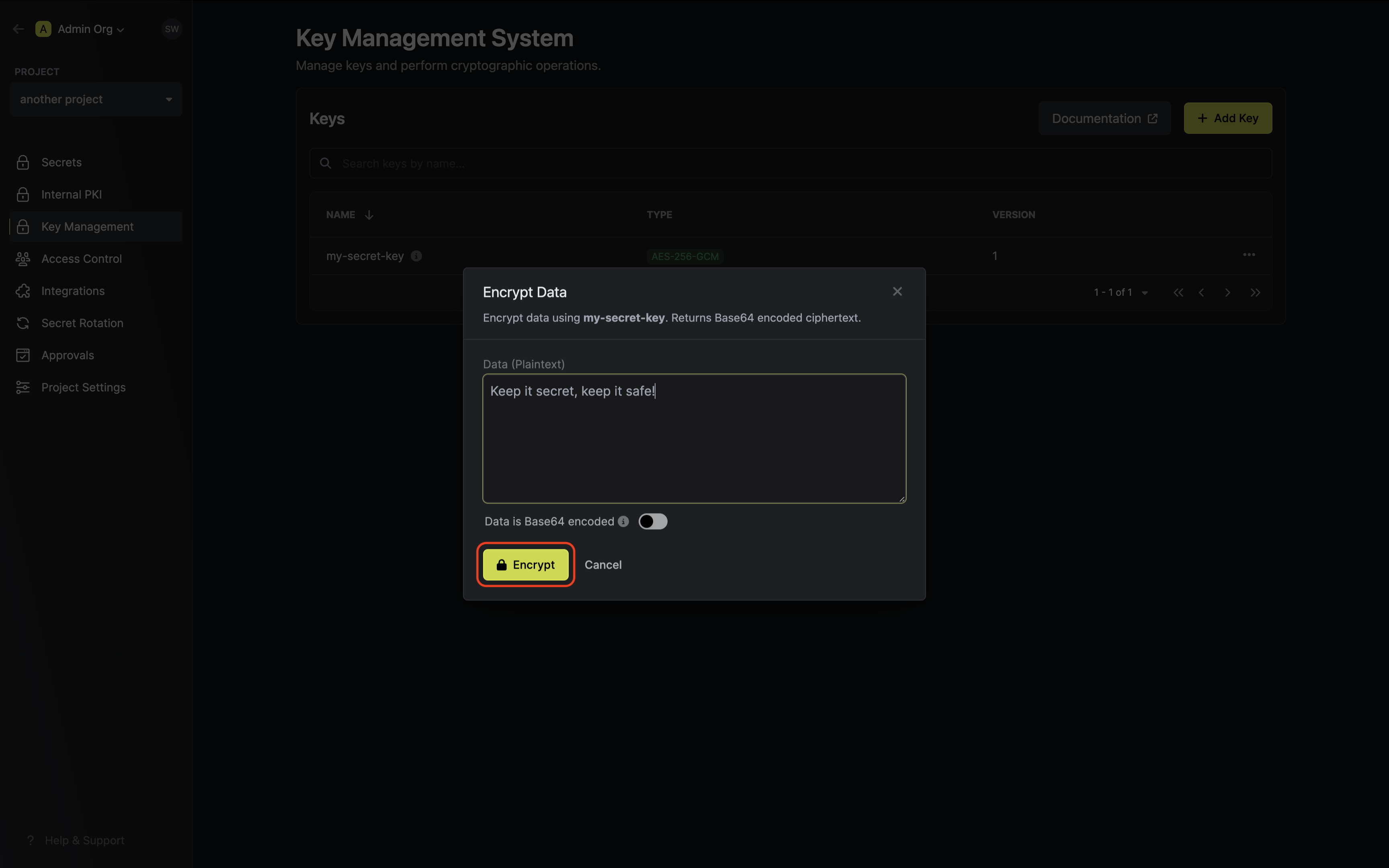 If your data is already Base64 encoded make sure to toggle the respective switch on to avoid
redundant encoding.
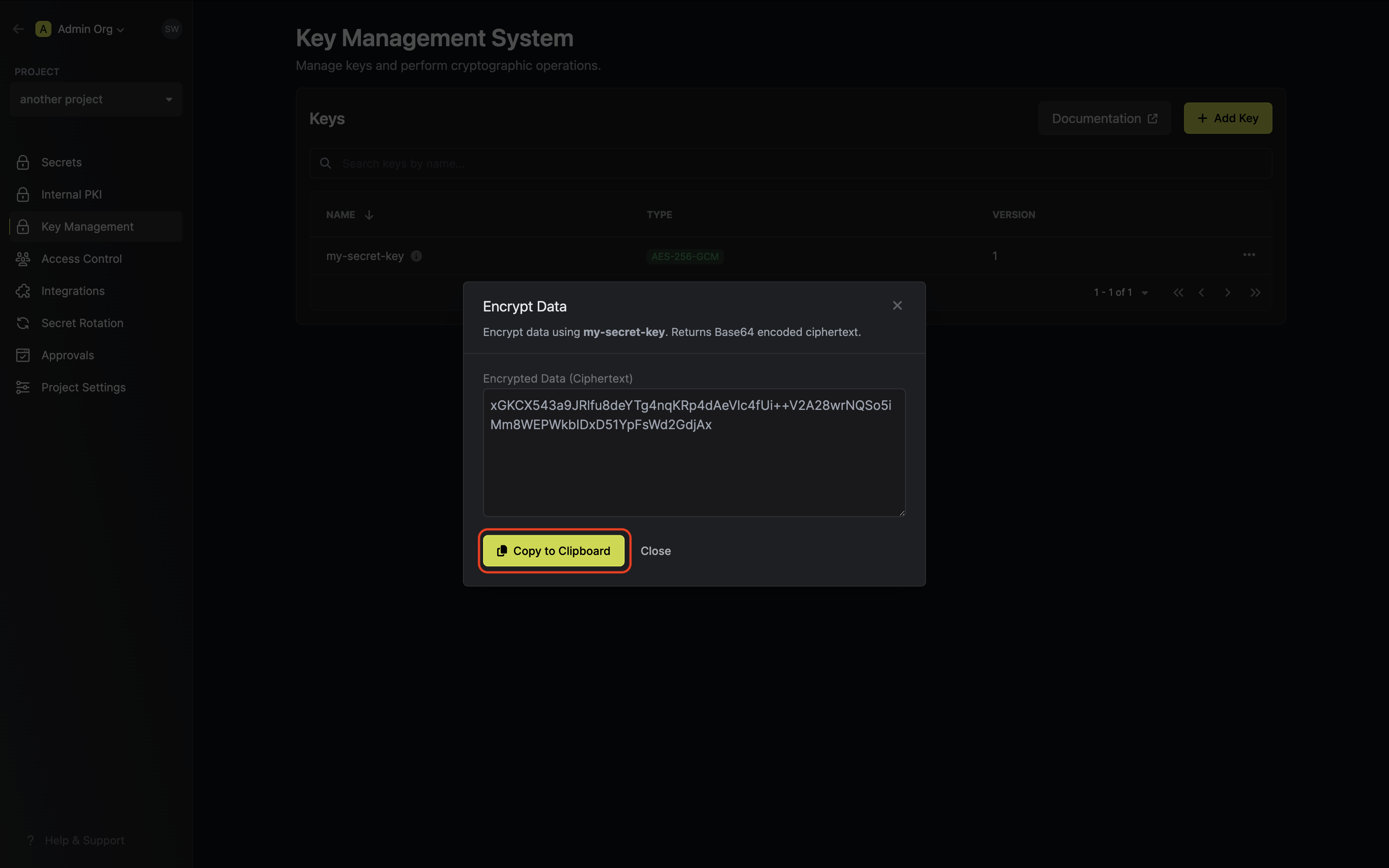
Copy and store the encrypted data.
If your data is already Base64 encoded make sure to toggle the respective switch on to avoid
redundant encoding.
Copy and store the encrypted data.
 To create a cryptographic key, make an API request to the [Create KMS
Key](/api-reference/endpoints/kms/keys/create) API endpoint.
### Sample request
```bash Request
curl --request POST \
--url https://secret-manager.t.platform.dev.ai71services.ai/api/v1/kms/keys \
--header 'Content-Type: application/json' \
--data '{
"projectId": "",
"name": "my-secret-key",
"description": "...",
"encryptionAlgorithm": "aes-256-gcm"
}'
```
### Sample response
```bash Response
{
"key": {
"id": "",
"description": "...",
"isDisabled": false,
"isReserved": false,
"orgId": "",
"name": "my-secret-key",
"createdAt": "2023-11-07T05:31:56Z",
"updatedAt": "2023-11-07T05:31:56Z",
"projectId": ""
}
}
```
To encrypt data, make an API request to the [Encrypt
Data](/api-reference/endpoints/kms/keys/encrypt) API endpoint,
specifying the key to use.
Make sure your data is Base64 encoded
### Sample request
```bash Request
curl --request POST \
--url https://secret-manager.t.platform.dev.ai71services.ai/api/v1/kms/keys//encrypt \
--header 'Content-Type: application/json' \
--data '{
"plaintext": "lUFHM5Ggwo6TOfpuN1S==" // base64 encoded plaintext
}'
```
### Sample response
```bash Response
{
"ciphertext": "HwFHwSFHwlMF6TOfp==" // base64 encoded ciphertext
}
```
## Guide to Decrypting Data
In the following steps, we explore how to use decrypt data using an existing key in Encrova KMS.
Navigate to Project > Key Management and open the options menu for the key used to encrypt the data
you want to decrypt.
To create a cryptographic key, make an API request to the [Create KMS
Key](/api-reference/endpoints/kms/keys/create) API endpoint.
### Sample request
```bash Request
curl --request POST \
--url https://secret-manager.t.platform.dev.ai71services.ai/api/v1/kms/keys \
--header 'Content-Type: application/json' \
--data '{
"projectId": "",
"name": "my-secret-key",
"description": "...",
"encryptionAlgorithm": "aes-256-gcm"
}'
```
### Sample response
```bash Response
{
"key": {
"id": "",
"description": "...",
"isDisabled": false,
"isReserved": false,
"orgId": "",
"name": "my-secret-key",
"createdAt": "2023-11-07T05:31:56Z",
"updatedAt": "2023-11-07T05:31:56Z",
"projectId": ""
}
}
```
To encrypt data, make an API request to the [Encrypt
Data](/api-reference/endpoints/kms/keys/encrypt) API endpoint,
specifying the key to use.
Make sure your data is Base64 encoded
### Sample request
```bash Request
curl --request POST \
--url https://secret-manager.t.platform.dev.ai71services.ai/api/v1/kms/keys//encrypt \
--header 'Content-Type: application/json' \
--data '{
"plaintext": "lUFHM5Ggwo6TOfpuN1S==" // base64 encoded plaintext
}'
```
### Sample response
```bash Response
{
"ciphertext": "HwFHwSFHwlMF6TOfp==" // base64 encoded ciphertext
}
```
## Guide to Decrypting Data
In the following steps, we explore how to use decrypt data using an existing key in Encrova KMS.
Navigate to Project > Key Management and open the options menu for the key used to encrypt the data
you want to decrypt.
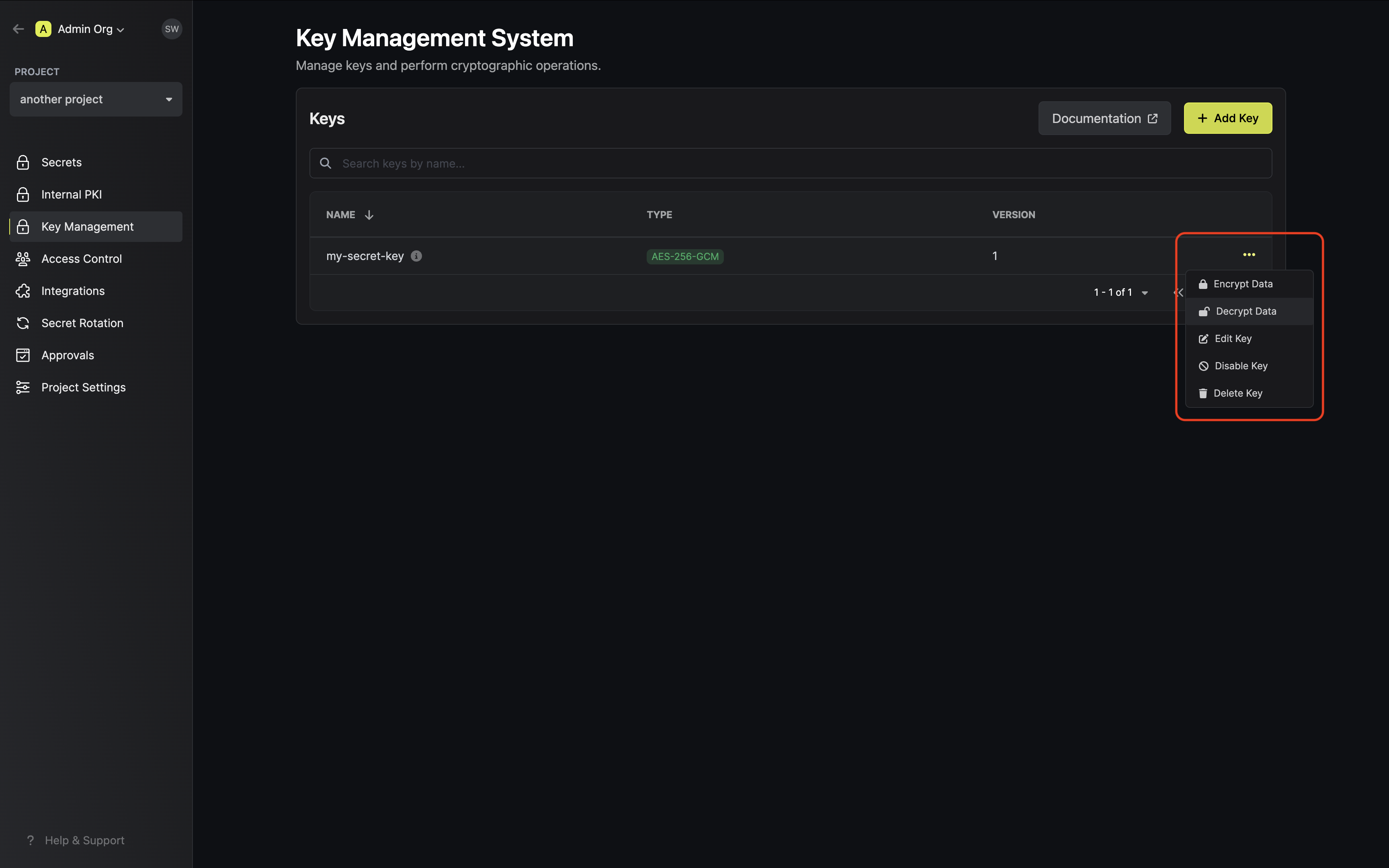 Paste your encrypted data into the text area and tap on the Decrypt button. Optionally, if your data was
originally plain text, enable the decode Base64 switch.
Paste your encrypted data into the text area and tap on the Decrypt button. Optionally, if your data was
originally plain text, enable the decode Base64 switch.
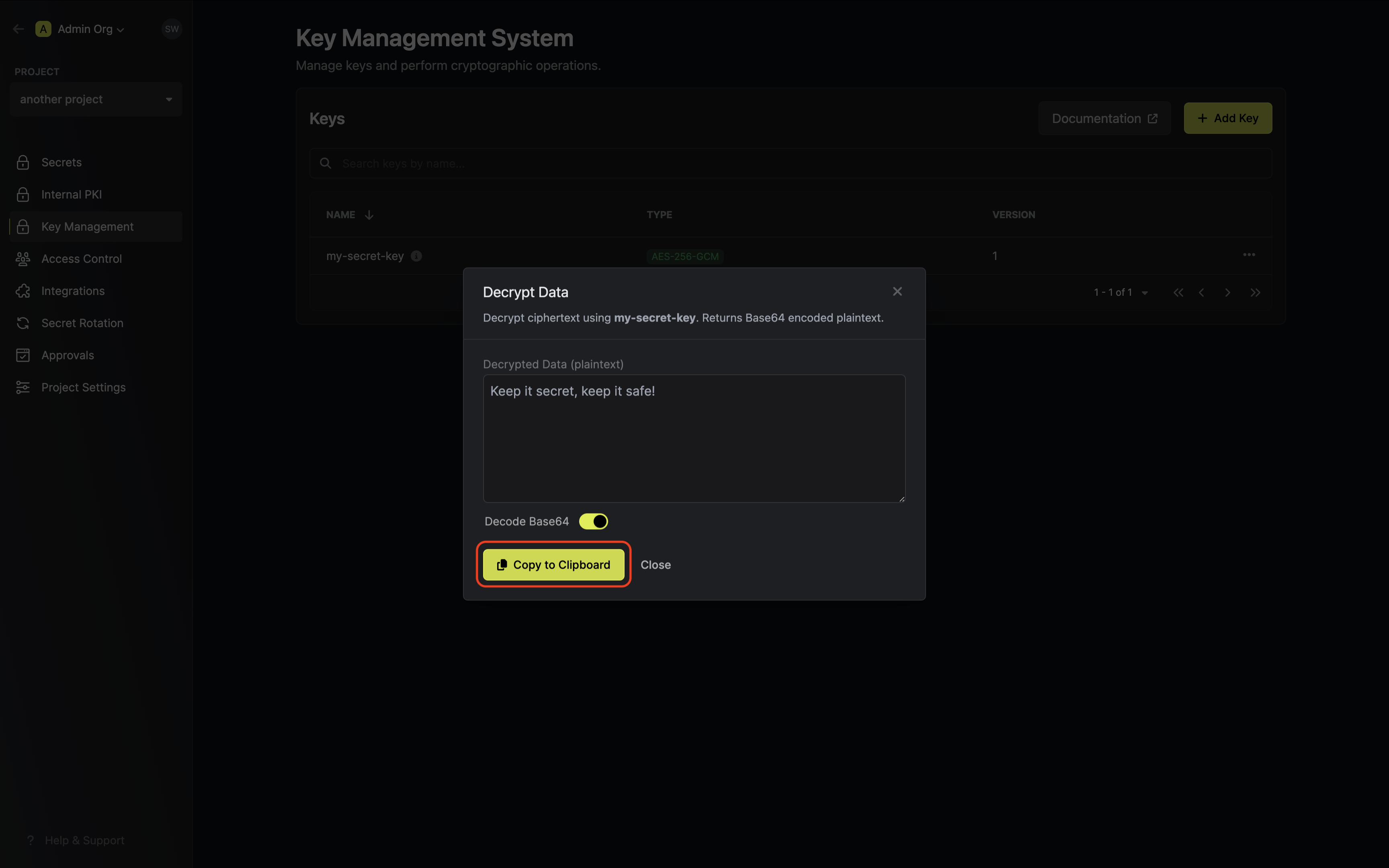
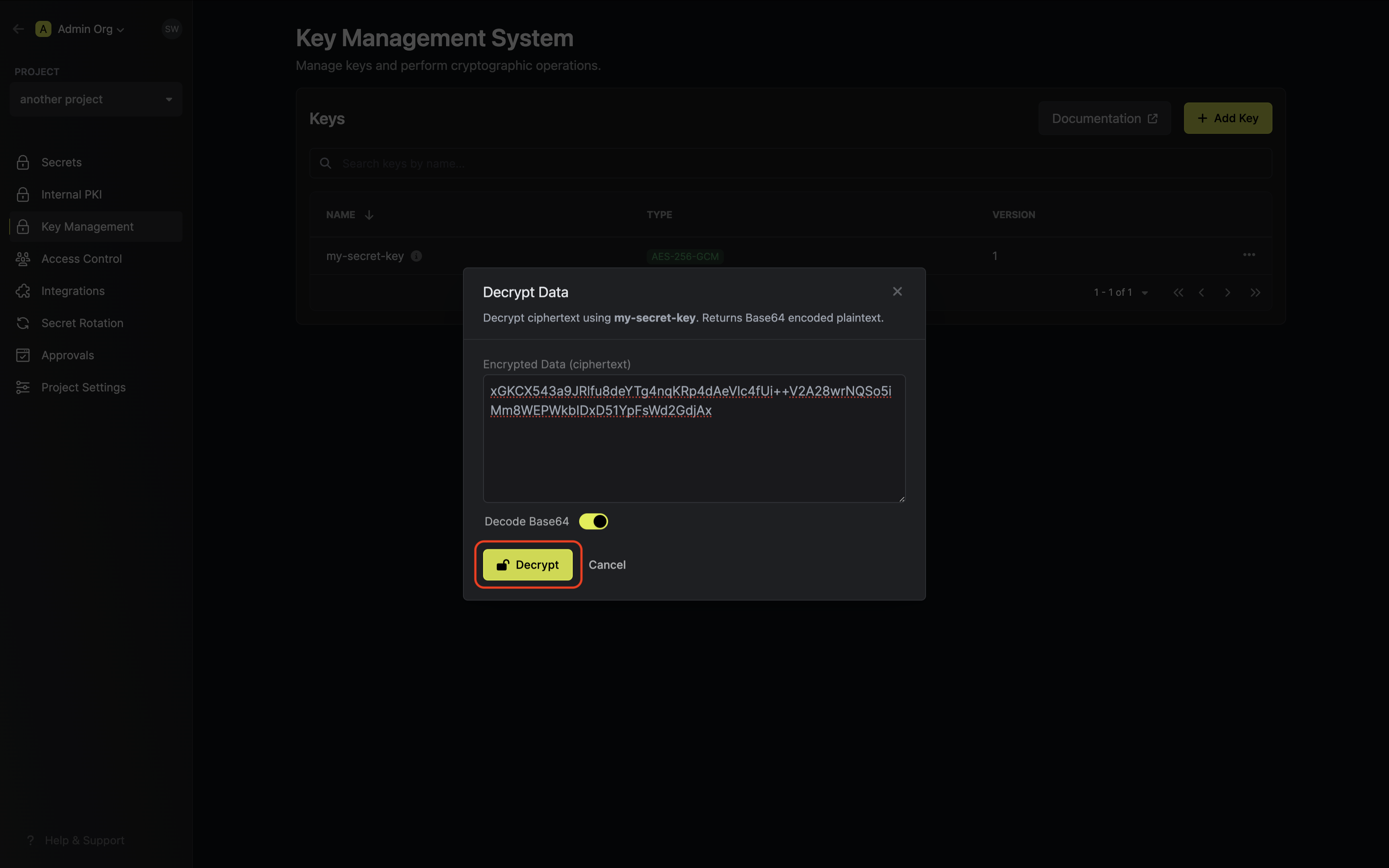 Your decrypted data will be displayed and can be copied for use.
 To decrypt data, make an API request to the [Decrypt
Data](/api-reference/endpoints/kms/keys/decrypt) API endpoint,
specifying the key to use.
### Sample request
```bash Request
curl --request POST \
--url https://secret-manager.t.platform.dev.ai71services.ai/api/v1/kms/keys//decrypt \
--header 'Content-Type: application/json' \
--data '{
"ciphertext": "HwFHwSFHwlMF6TOfp==" // base64 encoded ciphertext
}'
```
### Sample response
```bash Response
{
"plaintext": "lUFHM5Ggwo6TOfpuN1S==" // base64 encoded plaintext
}
```
## FAQ
No. Encrova's KMS only provides cryptographic services and does not store
any encrypted or decrypted data.
No. Encrova's KMS will never expose your keys, encrypted or decrypted, to
external sources.
Currently, Encrova only supports `AES-128-GCM` and `AES-256-GCM` for
encryption operations. We anticipate supporting more algorithms and
cryptographic operations in the coming months.
To decrypt data, make an API request to the [Decrypt
Data](/api-reference/endpoints/kms/keys/decrypt) API endpoint,
specifying the key to use.
### Sample request
```bash Request
curl --request POST \
--url https://secret-manager.t.platform.dev.ai71services.ai/api/v1/kms/keys//decrypt \
--header 'Content-Type: application/json' \
--data '{
"ciphertext": "HwFHwSFHwlMF6TOfp==" // base64 encoded ciphertext
}'
```
### Sample response
```bash Response
{
"plaintext": "lUFHM5Ggwo6TOfpuN1S==" // base64 encoded plaintext
}
```
## FAQ
No. Encrova's KMS only provides cryptographic services and does not store
any encrypted or decrypted data.
No. Encrova's KMS will never expose your keys, encrypted or decrypted, to
external sources.
Currently, Encrova only supports `AES-128-GCM` and `AES-256-GCM` for
encryption operations. We anticipate supporting more algorithms and
cryptographic operations in the coming months.