

Concept
Encrova can be used as a Key Management System (KMS), referred to as Encrova KMS, to centralize management of keys to be used for cryptographic operations like encryption/decryption. By default your Encrova data such as projects and the data within them are encrypted at rest using Encrova’s own KMS. This ensures that your data is secure and protected from unauthorized access. If you are on-premise, your KMS root key will be created at random with theROOT_ENCRYPTION_KEY environment variable. You can also use a Hardware Security Module (HSM), to create the root key. Read more about HSM.
Keys managed in KMS are not extractable from the platform. Additionally, data
is never stored when performing cryptographic operations.
Workflow
The typical workflow for using Encrova KMS consists of the following steps:- Creating a KMS key. As part of this step, you specify a name for the key and the encryption algorithm meant to be used for it (e.g.
AES-GCM-128,AES-GCM-256). - Encryption: To encrypt data, you would make a request to the Encrova KMS API endpoint, specifying the base64-encoded plaintext and the intended key to use for encryption; the API would return the base64-encoded ciphertext.
- Decryption: To decrypt data, you would make a request to the Encrova KMS API endpoint, specifying the base64-encoded ciphertext and the intended key to use for decryption; the API would return the base64-encoded plaintext.
Note that this workflow can be executed via the Encrova UI or manually such
as via API.
Guide to Encrypting Data
In the following steps, we explore how to generate a key and use it to encrypt data.- Encrova UI
- API
1
Creating a KMS key
Navigate to Project > Key Management and tap on the Add Key button.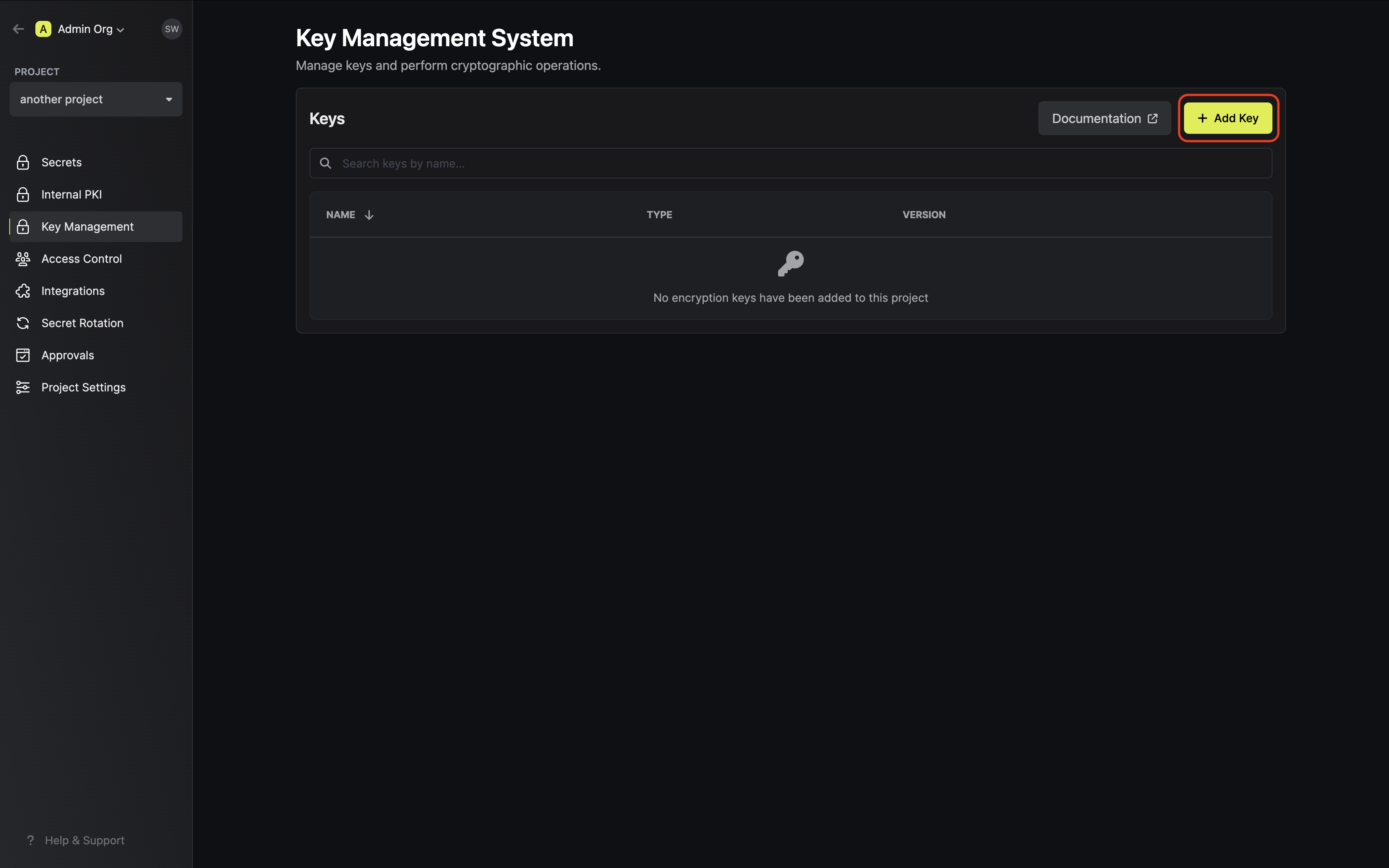 Specify your key details. Here’s some guidance on each field: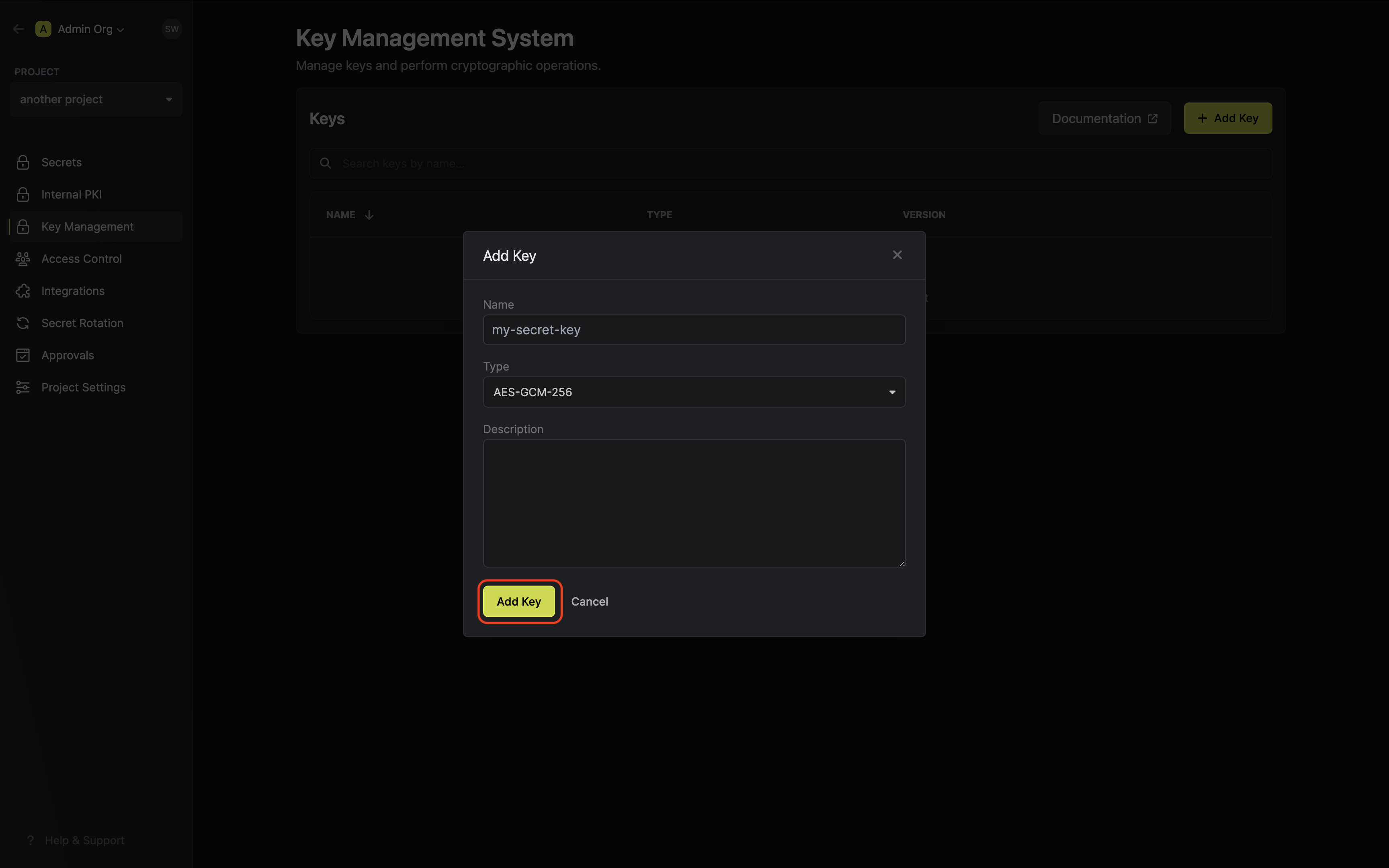
- Name: A slug-friendly name for the key.
- Type: The encryption algorithm associated with the key (e.g.
AES-GCM-256). - Description: An optional description of what the intended usage is for the key.
2
Encrypting data with the KMS key
Once your key is generated, open the options menu for the newly created key and select encrypt data.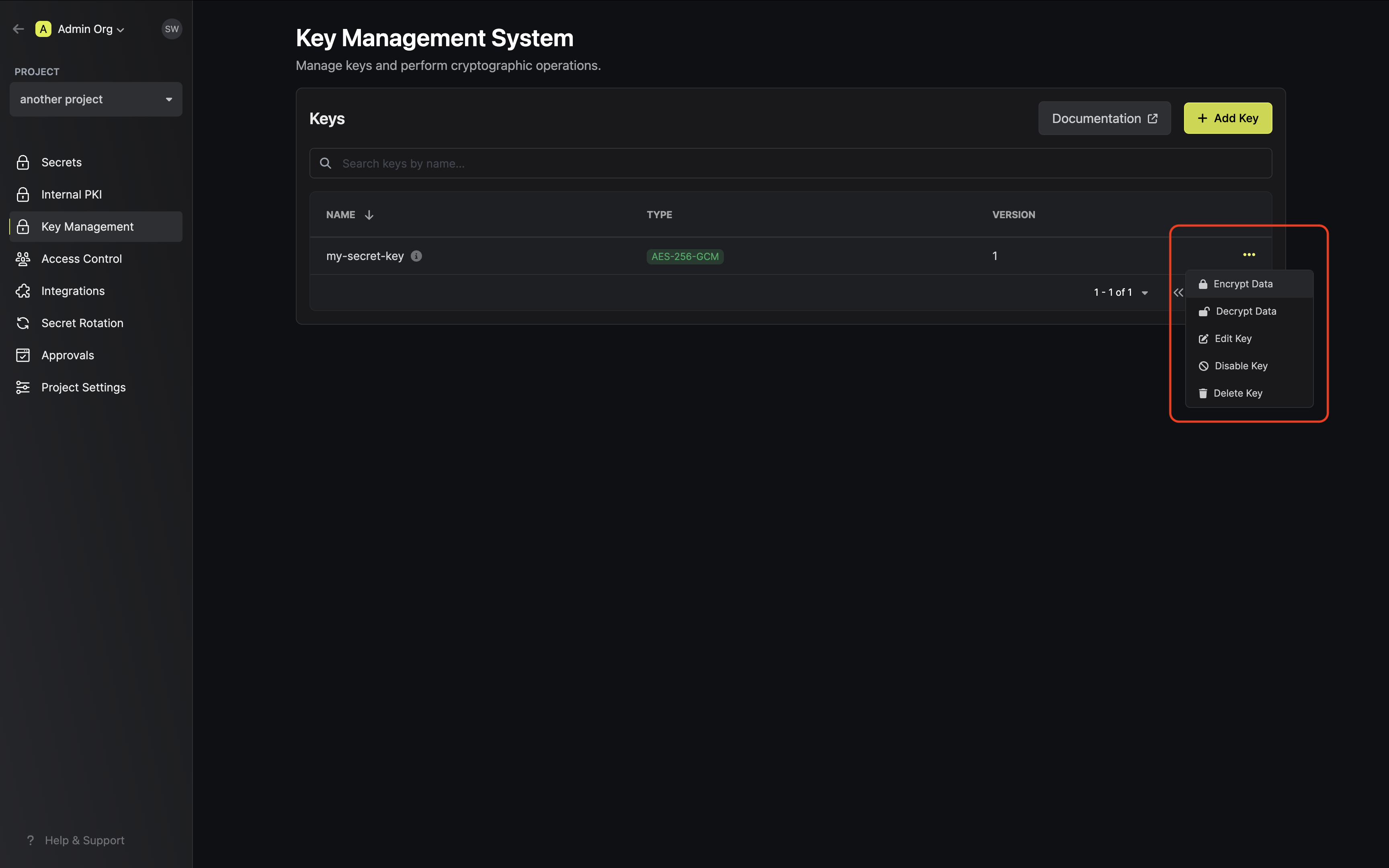 Populate the text area with your data and tap on the Encrypt button.
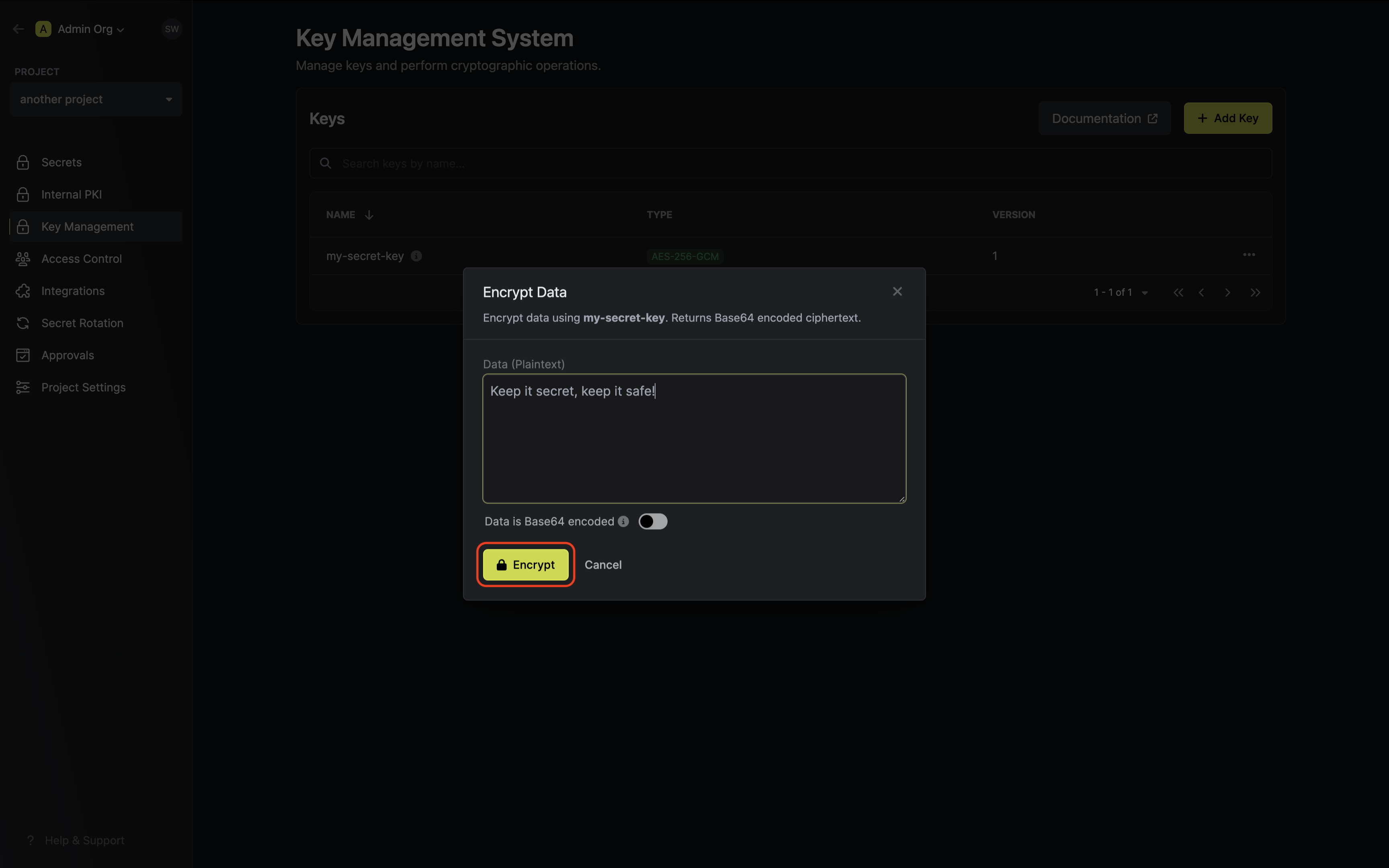 Copy and store the encrypted data.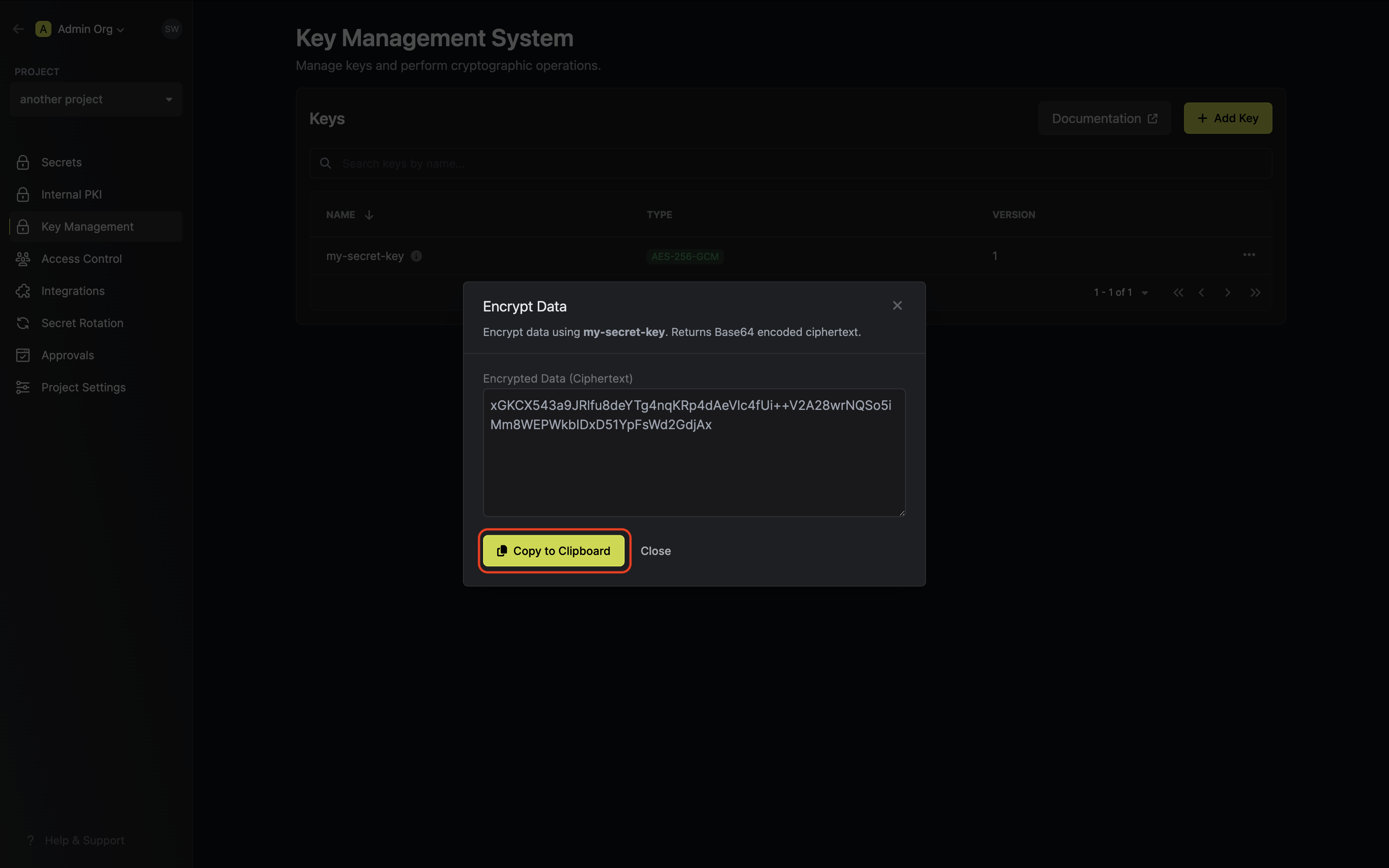
If your data is already Base64 encoded make sure to toggle the respective switch on to avoid
redundant encoding.
Guide to Decrypting Data
In the following steps, we explore how to use decrypt data using an existing key in Encrova KMS.- Encrova UI
- API
1
Accessing your key
Navigate to Project > Key Management and open the options menu for the key used to encrypt the data
you want to decrypt.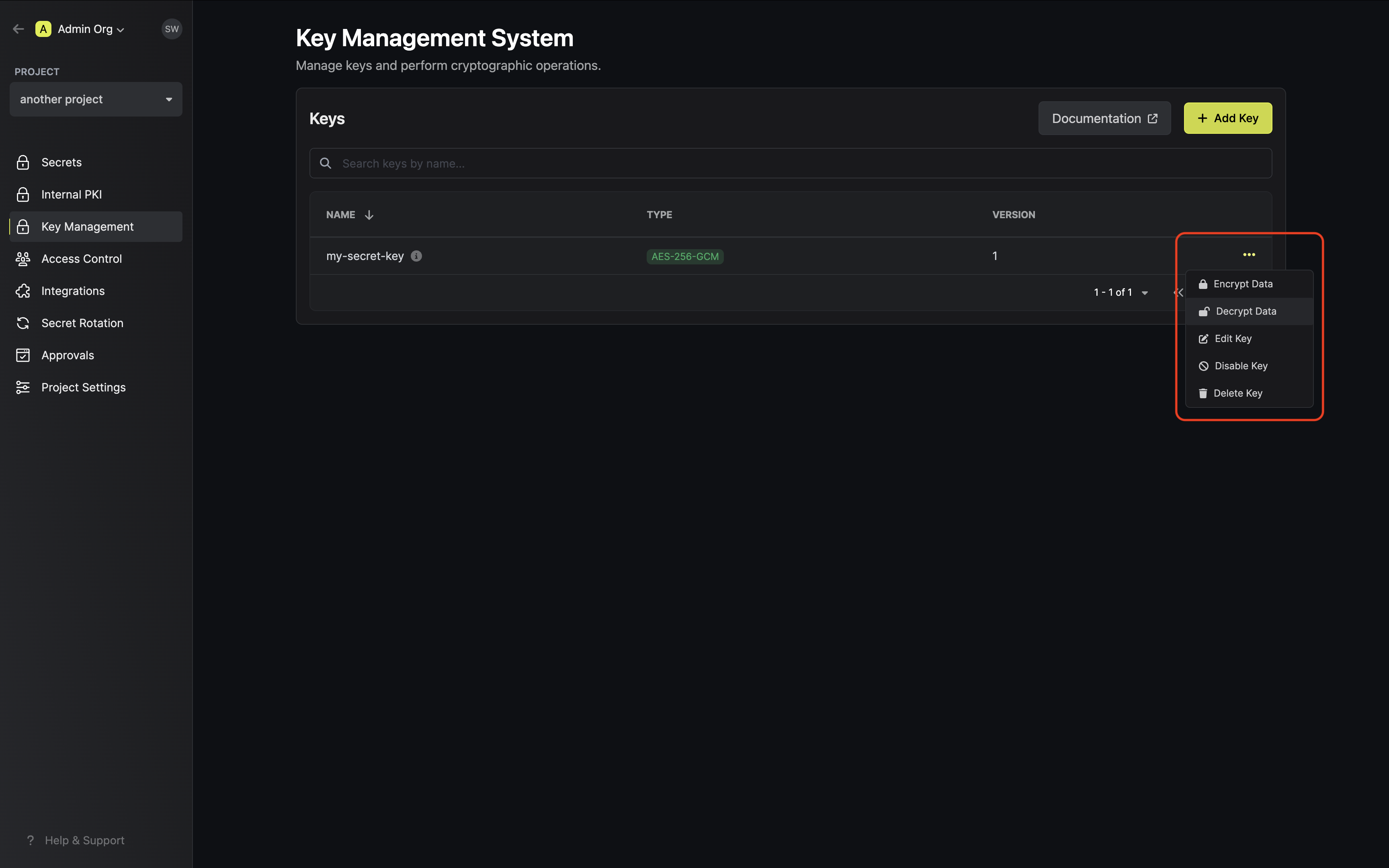
2
Decrypting your data
Paste your encrypted data into the text area and tap on the Decrypt button. Optionally, if your data was
originally plain text, enable the decode Base64 switch.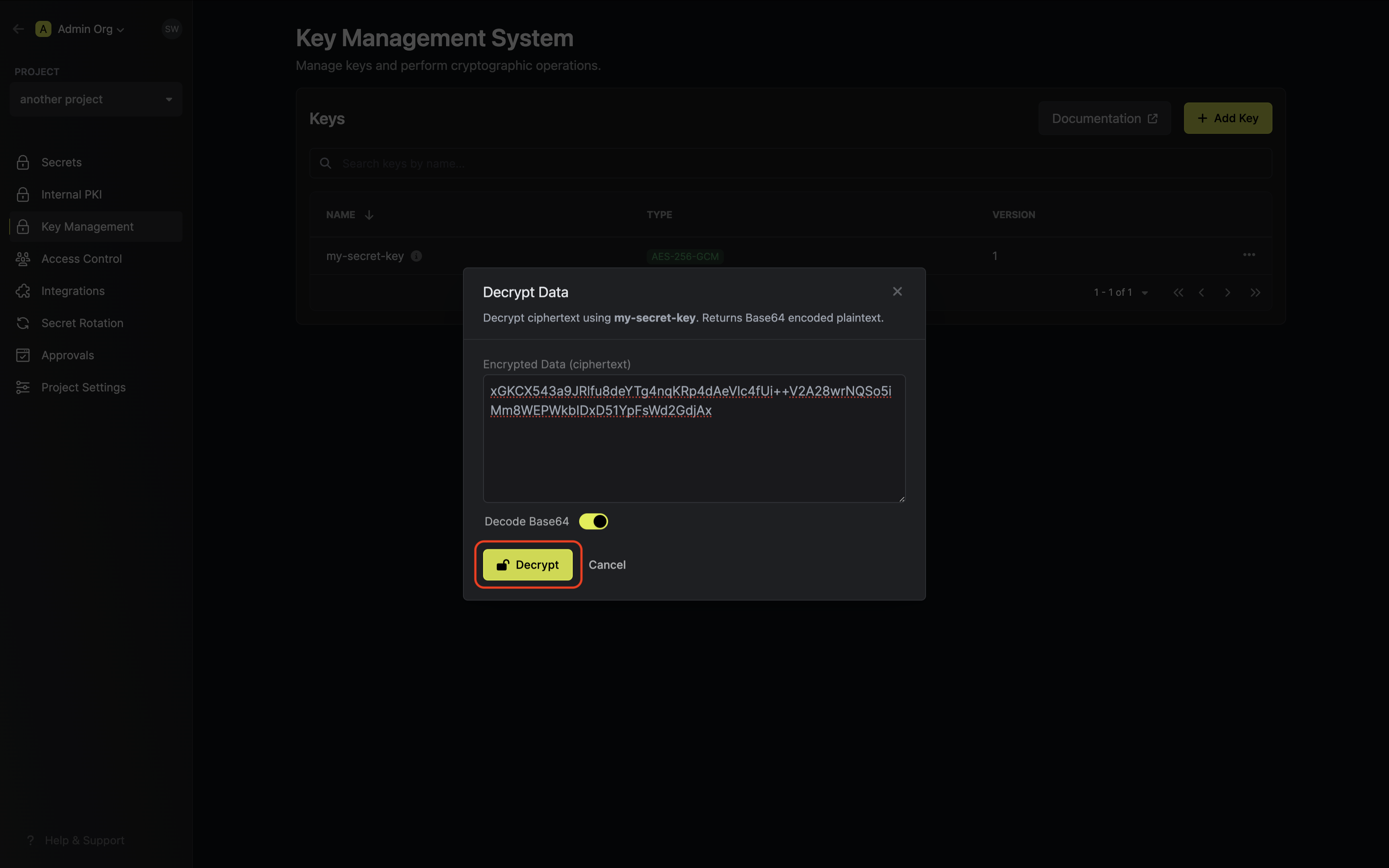 Your decrypted data will be displayed and can be copied for use.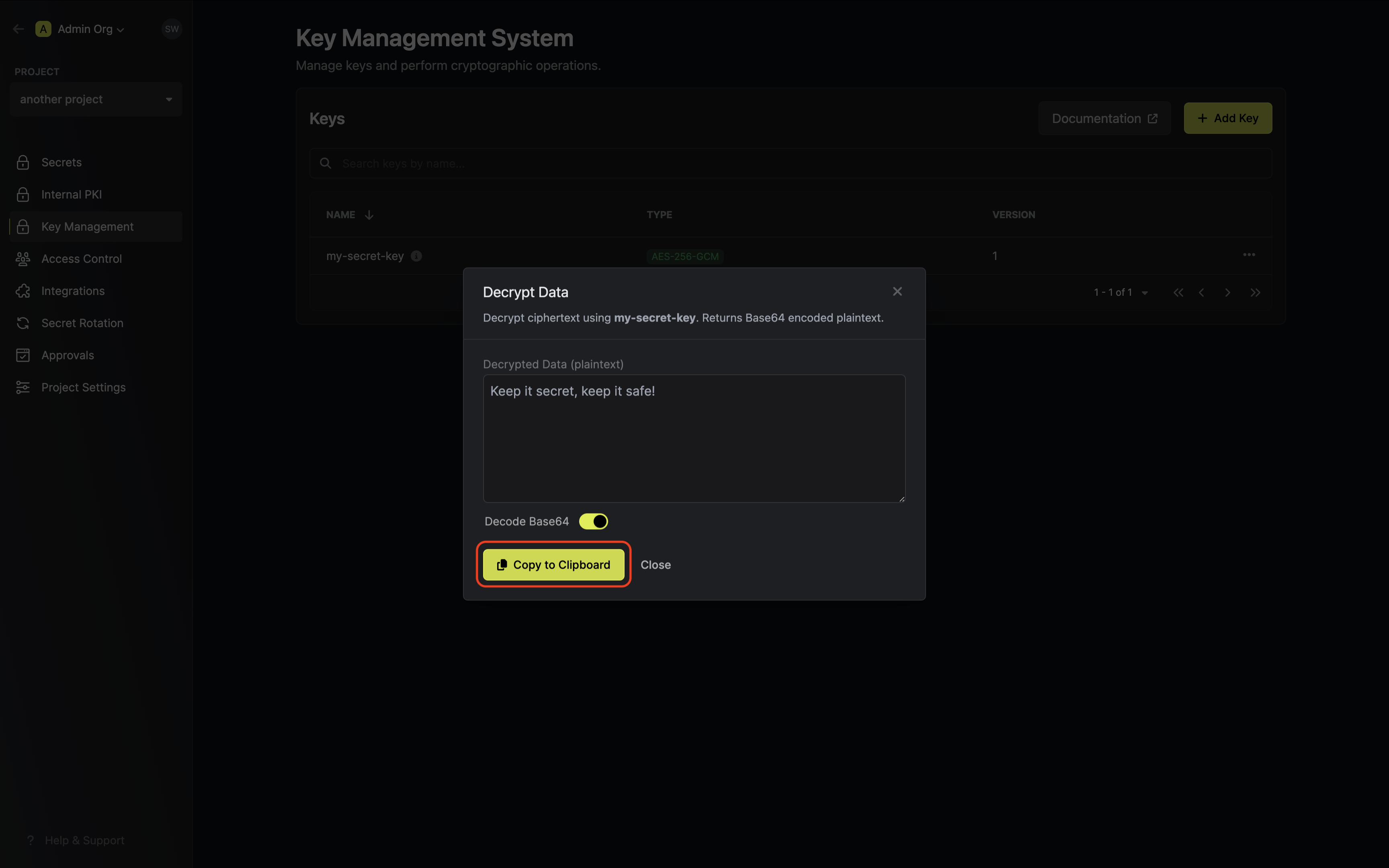
FAQ
Is my data stored in Encrova KMS?
Is my data stored in Encrova KMS?
No. Encrova’s KMS only provides cryptographic services and does not store
any encrypted or decrypted data.
Can key material be accessed outside of Encrova KMS?
Can key material be accessed outside of Encrova KMS?
No. Encrova’s KMS will never expose your keys, encrypted or decrypted, to
external sources.
What algorithms does Encrova KMS support?
What algorithms does Encrova KMS support?
Currently, Encrova only supports
AES-128-GCM and AES-256-GCM for
encryption operations. We anticipate supporting more algorithms and
cryptographic operations in the coming months.